
How to Download Music on Spotify: A Complete Guide (2026 Update)
Streaming has changed how we listen to music. With over 100 million tracks at your fingertips, Spotify is the undisputed king of audio. But what happens when you lose Wi-Fi on a flight or want to listen without burning through your mobile data? The answer seems simple: you just hit the download button.
However, as millions of users have discovered, downloading music on Spotify isn’t as straightforward as it seems. While the feature exists, it comes with a long list of fine print that can ruin your listening experience.
This guide will walk you through the official method, explain its frustrating limits, and introduce you to a professional tool—ViWizard Spotify Music Converter—that finally breaks down those barriers, allowing you to convert Spotify to MP3 and keep your music forever.
The Official Way: How Spotify Downloads Work
For those with a Premium subscription, Spotify allows offline listening. Here is the standard process for downloading albums or playlists via the official app:
- Open the Spotify app on your phone or desktop.
- Navigate to the playlist or album you want to save.
- Toggle the “Download” switch (usually a green arrow pointing down).
- Once completed, the tracks are available in your “Your Library” under the “Downloaded” filter.
When it works, it is seamless. But what Spotify doesn’t tell you is that you don’t actually “own” those files. You are renting them.
The 4 Major Limits of Spotify’s Offline Mode
Before you rely entirely on Spotify’s native download feature, you need to be aware of these strict walls:
1. The Premium Paywall
You cannot download anything to listen to offline with a Free account. That feature is locked exclusively for paying subscribers. If you cancel your Premium plan, all your downloaded songs vanish.
2. The 30-Day Expiration Rule
Spotify requires you to go online at least once every 30 days. If you stay offline longer than that (for example, during a long deployment, study abroad, or remote travel), the DRM (Digital Rights Management) expires, and the app deletes your downloads. You lose access even if the files are physically on your phone.
3. Device Limits
Officially, you can only download music on up to 5 different devices. If you upgrade your phone often or use multiple computers, you will constantly find yourself hitting administrative walls.
4. Proprietary Format
Even when you download a song, you cannot move it to an MP3 player, edit it as a ringtone, or burn it to a CD. The files are encrypted and will only play inside the Spotify app.
The Ultimate Solution: ViWizard Spotify Music Converter
If you want to bypass Spotify’s restrictions and truly own your music library, you need a third-party solution. This is where ViWizard Spotify Music Converter comes in.
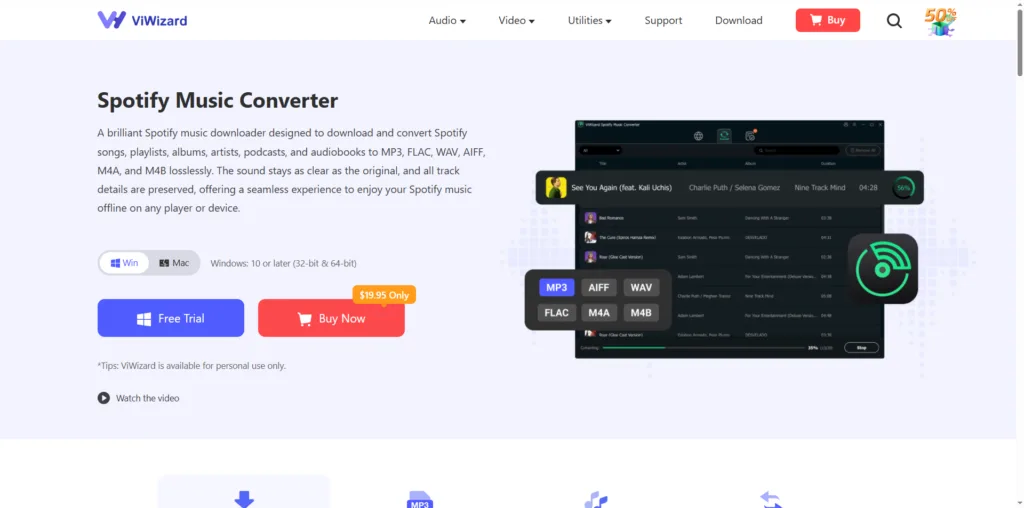
Unlike the “rental” model of the official app, ViWizard acts as a professional decoder. It removes the DRM protection from Spotify tracks and converts them into standard, universal formats like MP3, AIFF, WAV, or FLAC.
Why ViWizard is the Best Tool for the Job
Whether you are a Free user or a Premium subscriber, ViWizard gives you total control. Here is what makes it essential:
- Works with Free Accounts: You do not need a Premium subscription to download music using ViWizard. If you can stream it, ViWizard can save it.
- Lossless Quality: ViWizard uses advanced decryption technology to download audio at up to 320kbps. The output sound is identical to the original stream, preserving every beat and lyric.
- 15x Faster Speed: You don’t have to wait hours. ViWizard supports batch conversion, allowing you to download entire playlists at lightning speed, up to 15 times faster than real-time recording methods.
- ID3 Tag Preservation: When you convert a song, the software automatically saves the metadata (Artist Name, Album Cover, Genre, Year). Your music library stays organized when you import it into iTunes, Windows Media Player, or your car stereo.
How to Download Spotify Music as MP3 with ViWizard
Ready to jailbreak your music library? The process is incredibly simple and takes just a few minutes. Here’s the step-by-step guide to using the ViWizard software:
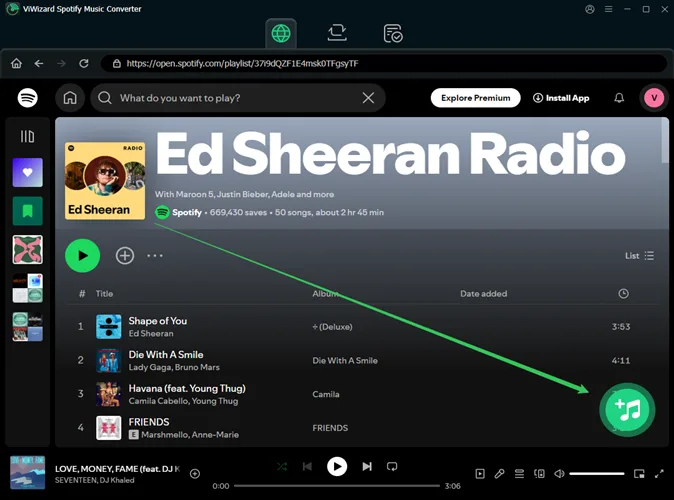
Step 1: Install and Launch
Download the ViWizard Spotify Music Converter from the official website. Install it on your Windows or Mac, and launch the program. The software is equipped with the Spotify web player y you just need log in your account.
Step 2: Add Your Tracks
Simply drag and drop your favorite Spotify playlist, album, or individual songs directly into the ViWizard interface. Alternatively, you can click the button + to add.
Step 3: Customize Output Settings
Click the menu icon in the top right corner to access “Preferences.” Here, you can select your output format (choose MP3 for maximum compatibility). You can also adjust the bitrate, sample rate, and output folder.
Step 4: Start the Conversion
Click the “Convert” button. ViWizard will immediately begin stripping the DRM and converting the songs to high-quality MP3 files. The batch processing feature means you can convert an entire 200-song playlist without lifting a finger.
Step 5: Enjoy Your Music Forever
Once the conversion is complete, click the “History” or “Converted” tab. Click the folder icon to open the destination folder. Your music is now saved as standard audio files.
Conclusion
While Spotify’s official “Download” button is convenient for casual listening, it is a trap for serious music collectors. The constant re-verification, device limits, and total loss of access when you cancel your subscription make it an unreliable long-term solution.
ViWizard Spotify Music Converter bridges the gap between streaming and ownership. It empowers you to convert Spotify streams into eternal MP3 files. With its 15x speed, lossless quality, and support for batch downloads, it is the best investment for anyone who wants to break free from the confines of the internet and truly own their digital music library.