
How to Freeze Location on Snapchat Without Turning It Off (2026 Guide)
Snapchat’s location features can be useful for sharing your whereabouts with close friends, but not everyone wants their real-time location constantly updating on Snap Map. Sometimes you may want more privacy without completely disabling location services or enabling Ghost Mode. That’s why many users are searching for ways to freeze location on Snapchat without turning it off.
In this guide, you’ll learn how Snapchat location sharing works, whether it’s possible to pause or freeze your location, and the best methods to control your Snapchat location on both iPhone and Android devices using MagFone Location Changer.
Can You Freeze Your Location on Snapchat?
Yes, but not directly through Snapchat itself. Snapchat does not include an official “freeze location” button. Your location updates automatically whenever you open the app while location permissions are enabled. However, there are several ways to stop your location from updating without completely turning off Snapchat location services.
Many users want to:
- Keep using Snapchat normally
- Avoid enabling Ghost Mode
- Prevent friends from seeing real-time movement
- Show a different location temporarily
- Improve privacy without appearing offline
Fortunately, there are a few methods that can help.
How Snapchat Location Sharing Works
Snapchat uses your device’s GPS data to update your location on Snap Map. The app only refreshes your position when you actively open Snapchat.
That means:
- If you stop opening Snapchat, your location eventually becomes outdated
- If GPS access changes, Snap Map may stop updating
- If a fake GPS location is used, Snapchat may display the modified location instead
Snapchat typically removes location updates after several hours of inactivity.
Method 1: Freeze Snapchat Location by Stopping Background Refresh
One simple way to pause your Snapchat location is to limit Snapchat’s ability to refresh in the background.
On iPhone open Settings. Tap General, select Background App Refresh. Find Snapchat, turn it off.
On Android, open Settings. Go to Apps, tap Snapchat. Select Battery, restrict background activity.
This method can slow location updates, but it is not always reliable because Snapchat may still refresh your position when reopened.
Method 2: Use Airplane Mode Temporarily
Another quick trick is enabling Airplane Mode before opening Snapchat.
Turn on Airplane Mode, open Snapchat. View messages or Snap Map, close the app completely before reconnecting. This may temporarily prevent location updates, but it’s inconsistent and not ideal for long-term use.
Method 3: Use Ghost Mode
Snapchat’s official privacy feature is Ghost Mode. To enable it, open Snap Map. Tap the settings icon, turn on Ghost Mode. This completely hides your location from everyone.
However, many users dislike this option because:
- Friends may notice you disappeared from Snap Map
- It disables all location visibility
- You cannot appear in a custom or frozen location
If you want more control, a GPS location changer is often a better option.
Best Way to Freeze Snapchat Location Without Turning It Off
The most effective method is using a GPS location changer tool to customize or lock your location manually. Instead of disabling location sharing completely, you can keep Snapchat active while displaying a fixed location that doesn’t change as you move.
One popular option is MagFone Location Changer. It allows users to:
- Change GPS location on iPhone and Android
- Simulate movement or stay fixed in one place
- Use Snapchat normally while controlling visible location
- Avoid jailbreaking or rooting the device
This approach is more flexible than Ghost Mode because your Snap Map location can remain visible without revealing your real-time movements. Not only Snapchat, MagFone works on all almost all apps in your mobile phone. If you are looking for how to change location on iPhone Find My, MagFone is also a great choice.
How to Freeze Snapchat Location Using MagFone
Here’s how to do it step by step.
Step 1: Download and install MagFone Location Changer on your computer. Launch the program and connect your iPhone or Android device using a USB cable.
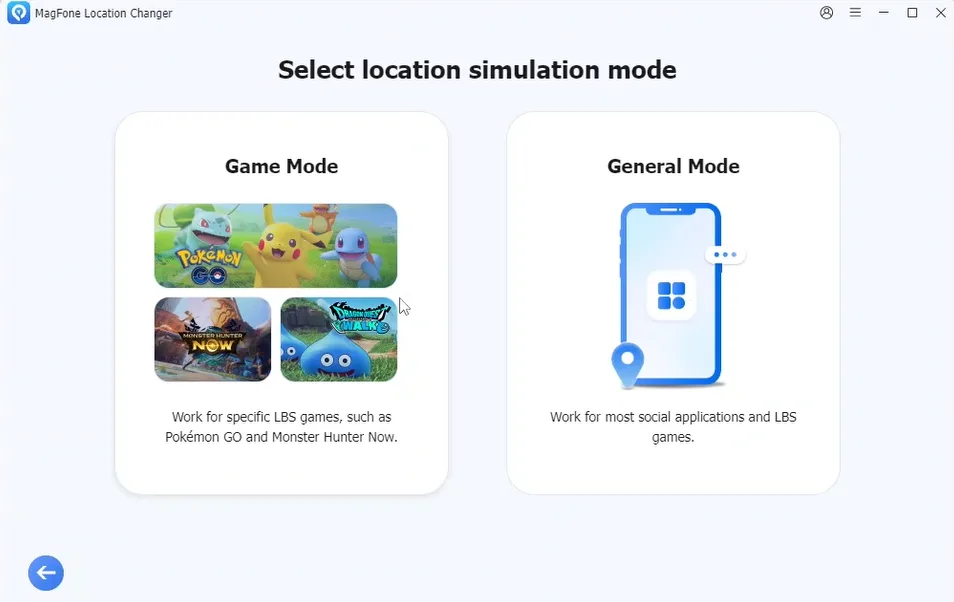
Step 2: After you entering the map interface. You can search for any city or address, drop a pin manually. Select a fixed GPS point, choose the location you want Snapchat to display.
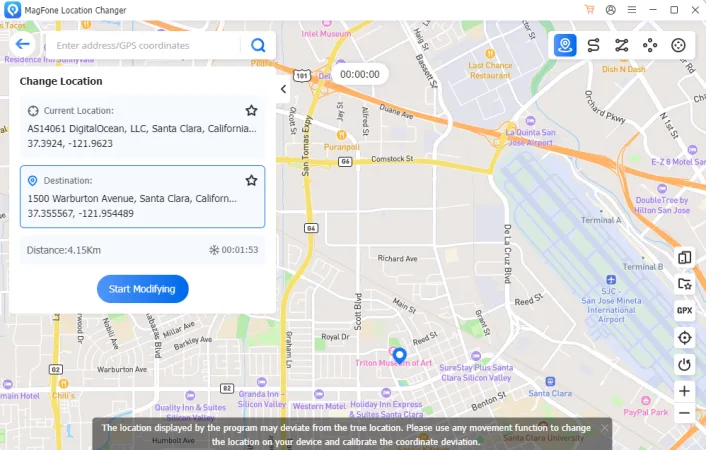
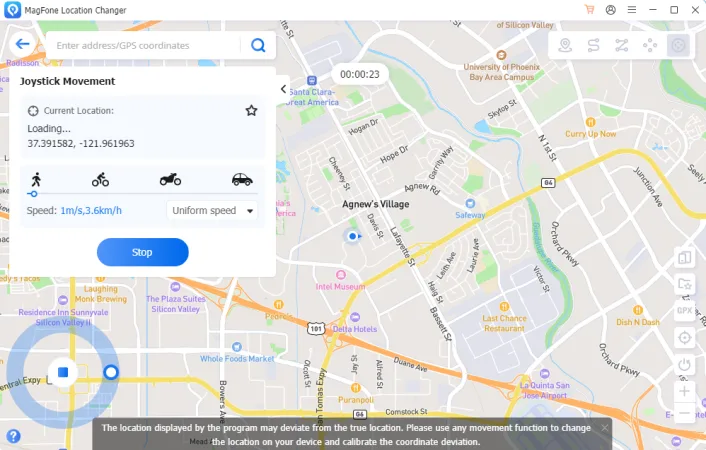
Step 3: Click Start Modifying button to apply the new GPS location. Once activated, Snapchat will read the modified location, your Snap Map location can remain fixed, and your real movements are no longer shown. You can still use Snapchat normally for chats, Stories, and Snap Map.
Will Snapchat Notify Others If You Freeze Your Location?
No. Snapchat does not send notifications when:
- You stop updating your location
- You use Ghost Mode
- Your location changes
- Your location remains frozen
Friends may only notice that your location hasn’t updated recently.
Is It Safe to Use Fake GPS on Snapchat?
In most cases, yes. Snapchat mainly focuses on social interactions rather than aggressively detecting GPS modification tools. Most users who change their GPS location responsibly do not encounter issues.
To stay safe:
- Avoid rapidly jumping between distant countries
- Use realistic locations
- Don’t abuse automated movement features excessively
Using a trusted tool like MagFone Location Changer can help minimize compatibility problems.
Why People Freeze Their Snapchat Location
There are many legitimate reasons users want to pause or modify their Snapchat location. Common reasons include:
- Privacy protection
- Avoiding constant tracking
- Preventing location sharing during travel
- Keeping personal movements private
- Testing Snap Map features
- Avoiding unwanted attention
Many users simply prefer having more control over who sees their real-time location.
Snapchat Location Not Updating? Possible Reasons
Sometimes Snapchat location freezing happens unintentionally. Possible causes include:
- Weak GPS signal
- Disabled location services
- Battery-saving mode
- Background refresh restrictions
- Internet connection issues
- Snapchat server problems
If Snap Map is not updating correctly, restarting the app or checking location permissions may help.
FAQs
- Can you pause Snapchat location without Ghost Mode?
Yes. Using a GPS location changer allows you to keep Snapchat location active while displaying a fixed location.
- Does Snapchat update location in real time?
Not constantly. Snapchat usually updates your location when the app is opened.
- Can Snapchat detect fake GPS apps?
Snapchat does not aggressively block GPS modification tools compared to some gaming apps. Most users can change locations normally.
- Is Ghost Mode the same as freezing location?
No. Ghost Mode hides your location entirely, while freezing location keeps a static location visible.
Final Thoughts
If you want more privacy on Snap Map without completely disappearing, freezing your Snapchat location can be a useful solution. While Snapchat itself doesn’t offer a built-in freeze feature, there are several ways to control how your location appears.
For occasional privacy, methods like Airplane Mode or background restrictions may help temporarily. But for a more reliable and flexible solution, using a dedicated GPS location changer like MagFone Location Changer is usually the easiest option. It allows you to keep using Snapchat normally while deciding exactly what location others can see.a