
Practical Ways to Protect Your Computer and Phone Online
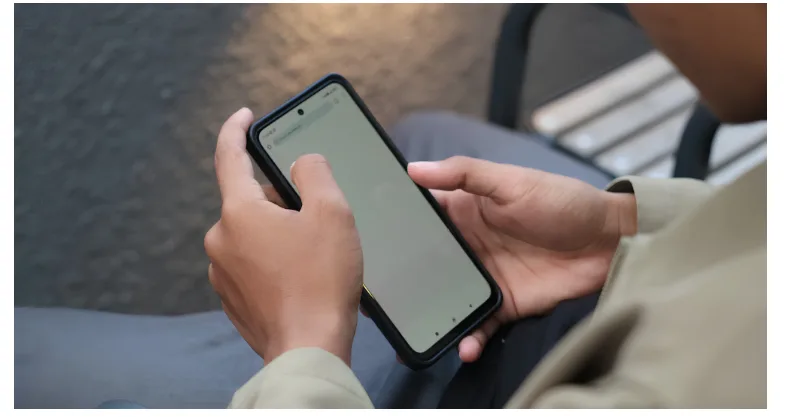
Most people only think about online security after something goes wrong. A strange login alert appears. A phone starts acting differently. A bank card gets used somewhere it should not. By that point, the damage may already be done.
The better approach is simple. Treat your computer and phone like entry points into your personal life. They hold your passwords, photos, banking apps, private messages, work files, and browsing history. Protecting them does not require advanced technical knowledge, but it does require a few good habits.
Below are practical ways to make your devices safer, whether you use Windows, Mac, Android, or iPhone.
Keep Your Software Updated
Software updates are easy to ignore, but they are one of the most basic layers of protection. Many updates are not just about new features. They also fix security gaps that criminals may already know how to exploit.
This applies to:
- Your phone operating system
- Your laptop or desktop system
- Web browsers
- Banking apps
- Messaging apps
- Antivirus software
- Password managers
- Router firmware
Delaying updates for weeks or months gives attackers more time to target known weaknesses. Turn on automatic updates where possible. For apps you use every day, check now and then to make sure they are still being updated by the developer.
Old apps that have not received updates for years should be removed. If the developer has abandoned them, they may become a weak point on your device.
Use Stronger Passwords and Stop Reusing Them
One of the biggest mistakes people make is using the same password across several websites. If one website gets breached, attackers can try the same email and password on your other accounts.
A strong password should be long, unique, and hard to guess. It does not need to be impossible to remember if you use a password manager. These tools can create and store different passwords for every account, so you do not have to rely on memory.
A good setup looks like this:
- One strong master password for your password manager
- Unique passwords for every major account
- No reused passwords for email, banking, crypto, or work accounts
- Two-factor authentication wherever possible
Your email account deserves special attention. If someone gains access to your email, they can often reset passwords for many other services. Protect it first.
Turn On Two-Factor Authentication
Two-factor authentication, often called 2FA, adds another step when logging in. Instead of relying only on your password, the account also asks for a temporary code, app confirmation, or hardware key.
Authenticator apps are usually better than SMS codes because phone numbers can be targeted through SIM swap scams. For important accounts, use an authenticator app or a hardware security key if the service supports it.
Turn on 2FA for:
- Banking
- Cloud storage
- Social media
- Crypto exchanges
- Work platforms
- Shopping accounts with saved payment cards
It may add a few seconds to login, but it can stop someone from getting into your account even if they know your password.
Be Careful on Public WiFi
Public WiFi is useful, but it is not always safe. Cafes, hotels, airports, and shopping malls often provide free WiFi, but you rarely know who else is connected or how secure the network is.
Avoid logging into banking apps or sensitive work accounts on public WiFi unless you have extra protection in place. A VPN is one option because it encrypts your internet traffic and makes it harder for others on the same network to see what you are doing.
This is also where many people start comparing VPN services. If you are researching options, you can check guides such as best vpn for privacy to understand how VPN pricing works before choosing a paid service.
A VPN is not magic. It will not protect you from every scam, fake website, or infected download. But it is useful when you want more privacy from networks, internet providers, and certain tracking systems.
Lock Your Devices Properly
Your phone or laptop may already contain everything someone needs to access your life. If the device is stolen or borrowed without permission, weak lock settings make the problem much worse.
Use:
- A strong PIN
- Fingerprint or face unlock
- Auto-lock after a short period
- Full-disk encryption where available
- Remote wipe features
Avoid simple PINs like 1234, 0000, or your birthday. Also, do not leave your phone unlocked on tables in public places. It only takes a few seconds for someone to open apps, change recovery details, or view private messages.
For laptops, set them to require a password when waking from sleep. If you travel often, this matters even more.
Watch Out for Fake Links and Messages
Phishing is still one of the most common ways people lose accounts. These attacks often arrive by email, SMS, messaging apps, or social media. The message may look like it came from a bank, delivery company, streaming service, crypto platform, or government office.
Common warning signs include:
- Urgent language
- Threats that your account will be closed
- Requests to verify payment details
- Strange sender addresses
- Shortened links
- Spelling mistakes
- Attachments you did not expect
Do not click links in messages just because they look official. Go directly to the website or app yourself. If a delivery company, bank, or subscription service really needs action, it should also appear inside your account when you log in normally.
Download Apps Only from Trusted Sources
Phones are safer when apps come from official stores, but that does not mean every app is trustworthy. Some apps request too many permissions or collect more data than they need.
Before installing anything, check:
- Who made the app
- Recent reviews
- Number of downloads
- Requested permissions
- Whether the app has been updated recently
- Whether there are fake versions with similar names
Be careful with APK files, cracked software, free premium tools, and unofficial streaming apps. These are common ways malware spreads. A free download can become expensive if it steals passwords or banking details.
Back Up Your Important Files
Security is not only about stopping hackers. It is also about recovery. Phones break, laptops fail, files get deleted, and ransomware can lock access to your data.
Keep backups of anything you cannot afford to lose. This includes family photos, work files, tax records, contracts, and password recovery codes.
A simple backup plan is:
- One cloud backup
- One external drive backup
- Regular checks to make sure files are actually saving
- Encryption for sensitive documents
Backups are boring until the day they save you from a disaster.
Review App Permissions
Many apps ask for access to your camera, microphone, location, contacts, photos, or files. Some need those permissions to work. Others do not.
Every few months, review permissions on your phone and computer. Remove access that does not make sense. A weather app may need approximate location, but it does not need your contacts. A photo editing app may need image access, but not your microphone.
Reducing permissions limits how much data apps can collect or misuse.
Use Antivirus and Built-In Security Tools
Modern devices already include some protection. Windows Security, macOS security settings, Android Play Protect, and iOS privacy controls all help. Still, antivirus software can add another layer, especially for Windows users who download files often.
Use security tools to scan downloads, block suspicious websites, and detect malware. Do not install multiple antivirus programs at the same time, though. They can conflict with each other and slow your device down.
Final Thoughts
Protecting your computer and phone is not about one tool. It is about layers. Updates fix known weaknesses. Strong passwords reduce account theft. 2FA blocks many login attacks. VPNs help on public networks. Backups protect your files when things go wrong.
Start with the basics first. Update your devices, stop reusing passwords, turn on 2FA, and clean up old apps. Those steps alone will put you ahead of most people.