
iPhone 11 Black Lines on Screen? 8 Proven Fixes That Actually Work
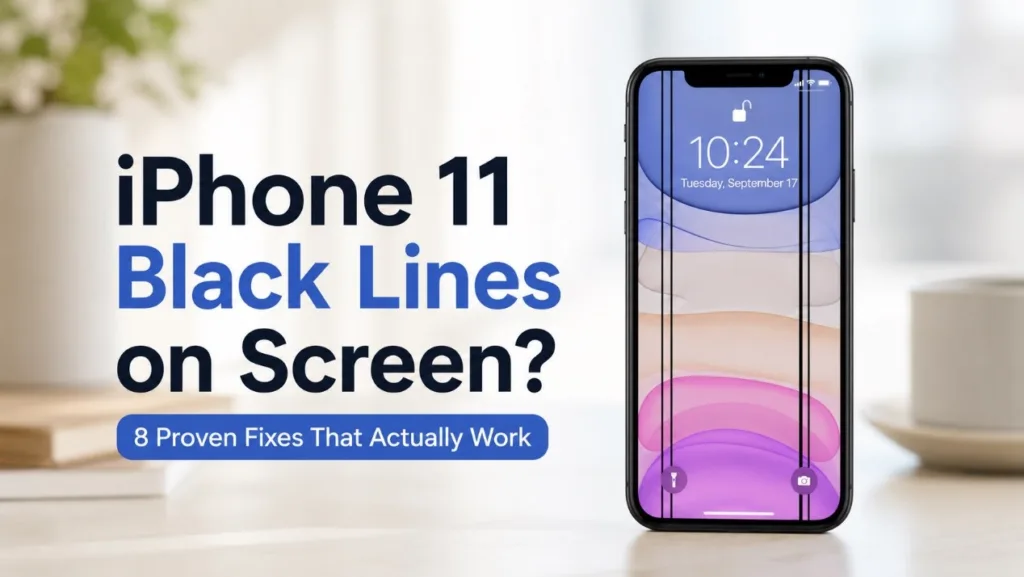
Noticed black lines on your iPhone 11 screen and wondering how to remove them? Whether there is a single thin line, a cluster of vertical lines, or a flickering black bar, this display issue disrupts your user experience. The good news is that this issue is usually temporary and can be resolved with a simple settings adjustment or software update.
This guide provides eight proven methods to fix iPhone 11 black lines on screen. You will learn troubleshooting steps ranging from basic restarts to professional iOS system recovery options.
Why Are There Black Lines on My iPhone Screen?
Before trying any solutions, it’s essential to identify the underlying cause of the problem. The appearance of black lines generally falls into two categories:
1. Software Glitches: These occur when the operating system fails to render graphics properly. This is often caused by a crashed app, a bug in the current iOS version, or a corrupted system cache.
2. Hardware Damage: Physical drops, water exposure, or pressure on the screen can damage the LCD or OLED display connectors inside the device.
A quick way to differentiate between the two is to take a screenshot. If the black lines appear in the screenshot, the issue is likely software-based. If the screenshot looks normal but the lines are visible on the physical screen, the hardware is likely damaged.
How to Fix Black Lines on iPhone 11 Screen?
Fix 1. Force Restart Your iPhone
The simplest first step is to perform a force restart. Unlike a standard power off, this clears the system memory and reloads the operating system without erasing data, which often resolves temporary software glitches.
How to force restart iPhone 11:
1. Press and release the Volume Up button first.
2. Immediately press and release the Volume Down button.
3. Press and hold the Side button (on the right) until the Apple logo appears on the screen.
4. Release the button and wait for the device to boot up. Check whether the black lines are gone.
Fix 2. Update iOS to the Latest Version
Apple frequently releases updates to patch bugs that affect performance and display functionality. If you are running an older version of iOS, known glitches may cause abnormal display.
To check for updates:
1. Open the Settings app.
2. Tap General, then select Software Update.
3. If an update is available, tap Download and Install.
Fix 3. Remove Problematic Apps
If the black lines only appear when you are using a specific application, that app is likely the culprit. Some apps may not be optimized for your iOS version or may contain bugs that interfere with the GPU.
To test this, use your phone normally. If the black lines only appear in one app, reopen it to see if the issue returns. If other apps are unaffected, uninstall the app and check the screen again.
Fix 4. Reset All Settings
If the black lines persist, a system settings conflict also might be the cause. Try resetting all settings. This step will not delete your data, photos, or apps, but will reset system preferences like Wi-Fi passwords, Bluetooth connections, and display settings.
How to reset all settings:
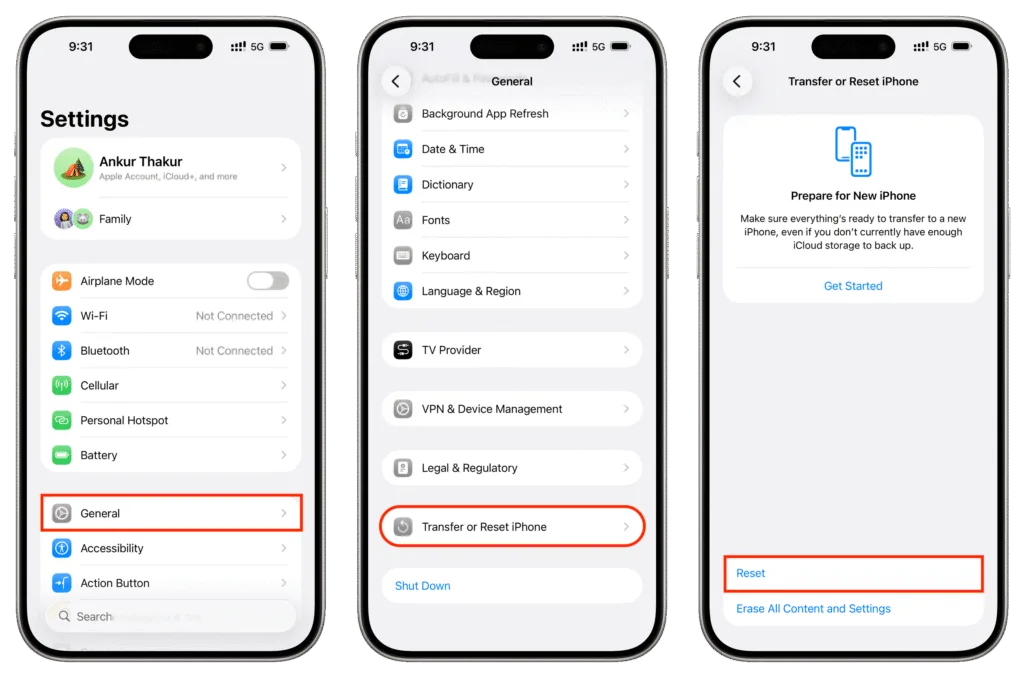
1. Open Settings and go to General > Transfer or Reset iPhone.
2. Tap Reset and select Reset All Settings from the available options.
3. Enter your passcode and confirm.
After the process completes, your iPhone will restart with default settings.
Fix 5. Use a Professional iOS System Repair Tool
If standard resets fail, a dedicated system repair tool like TunesKit iOS System Recovery can fix software-related display issues without erasing your data. This program addresses over 150 iOS problems by reinstalling the firmware while keeping your photos and messages intact.
How it works:
1. Download and install TunesKit iOS System Recovery on your computer, then connect your iPhone 11.
2. Select iOS System Repair from the interface, choose Standard Repair mode (data-safe) and click Download to obtain the official firmware.
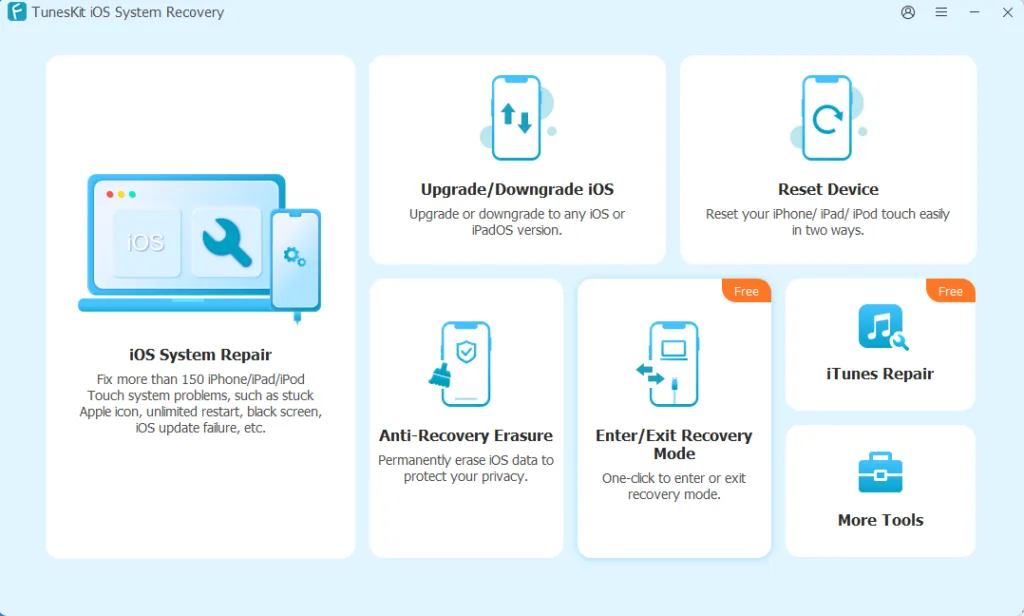
3. Click Start Standard Repair and wait for the process to complete. Your device will restart with the system fixed.

Standard Repair can fix common iOS issues such as black lines on iPhone screen, iPhone green screen, and update failures without erasing your data. If Standard Repair doesn’t work, try Deep Repair. This mode can resolve more serious system problems, but it will erase all data. Be sure to back up your device before using Deep Repair.
Fix 6. Restore iPhone Using Recovery Mode
If the issue remains, you may need to perform a factory restore. This is a more drastic measure that erases all data on your iPhone. It is recommended to back up your data before proceeding.
To enter Recovery Mode on iPhone 11:
1. Connect your iPhone to a computer and open Finder (Mac) or iTunes (PC).
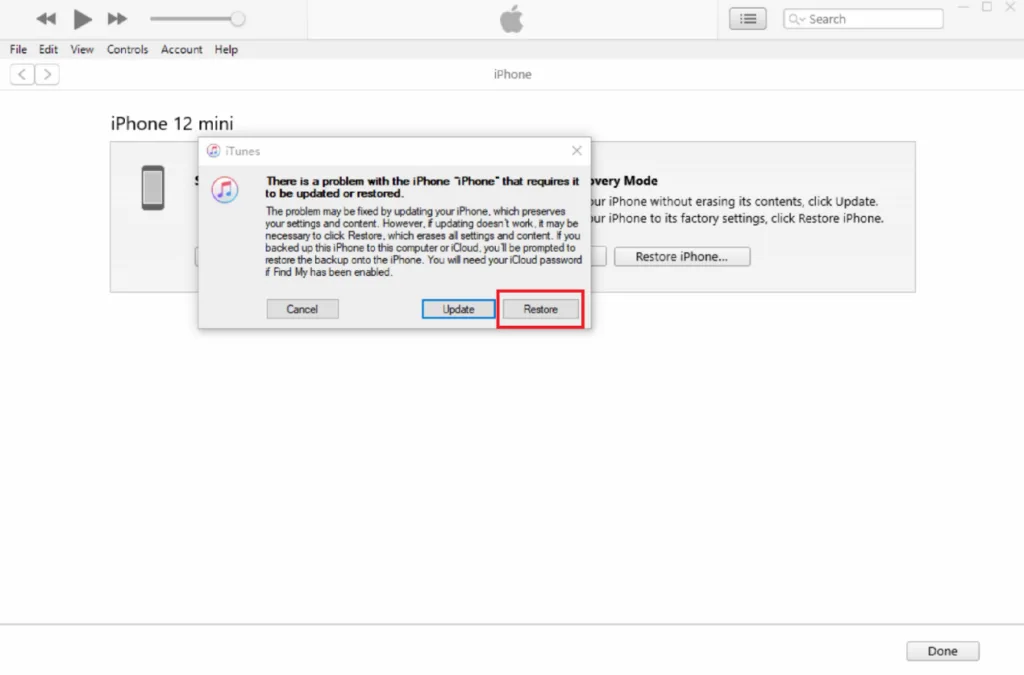
2. Press and release Volume Up, then Volume Down, and hold the Side button until the recovery mode screen appears (showing a computer icon).
3. On your computer, choose Restore. This will download the iOS software and install it fresh. This completely wipes the device and installs a clean version of iOS, which can remove severe software bugs causing the black lines.
Fix 7. Check for Physical or Water Damage
Examine your iPhone closely. Look for hairline cracks in the glass or signs of liquid damage (check the Liquid Contact Indicator in the SIM card slot). If the black line is a solid, thick bar that does not move when you rotate the screen, it is almost certainly a hardware issue.
Physical damage to the display black lines is a common cause. Even if you haven’t dropped the phone, internal pressure from a swollen battery can cause screen distortion.
Fix 8. Replace the Screen
If all software and diagnostic checks fail, the screen replacement is the only viable solution. A certified technician can replace the damaged display assembly. You can contact Apple Support to schedule a repair. If your device is under warranty or you have AppleCare+, the screen repair might be covered at a reduced cost.
Frequently Asked Questions
1. Can black lines on an iPhone 11 screen go away on their own?
Yes, if the lines are caused by a software glitch. A simple restart or app refresh often resolves the issue. However, if the lines are due to hardware damage, they will not fix themselves.
2. Are black lines caused by software or hardware issues?
They can be caused by both. Software issues usually manifest as flickering or thin lines that appear randomly. Hardware issues usually result in thick, static black bars that remain constant regardless of the app being used.
3. Can an iOS update cause black lines on the screen?
Yes, in rare cases, a buggy iOS update can cause graphics rendering issues. If the problem appeared immediately after an update, try reinstalling iOS via Recovery Mode. Usually, Apple releases a patch for such bugs in the next update.
Conclusion
Black lines on your iPhone 11 may be caused by software glitches or hardware damage. Start with simple fixes like force restarting and updating iOS. If those fail, try TunesKit iOS System Recovery to resolve system issues without erasing your data. When software solutions don’t work, the screen likely needs professional replacement. Contact Apple Support promptly, as display problems can worsen over time.