
How to Remotely Access iPhone from Another iPhone in 2026 (The Faster Way)

Remote access to an iPhone from another iPhone in 2026 is simple and highly useful for tasks such as helping someone fix issues, accessing files, or managing settings remotely. The fastest way to work is by screen sharing with a remote-control app like AweSun Remote Control. Apple still doesn’t allow full remote control between iPhones, but you can instantly view screens, guide actions, and support someone in real time with almost no delay.
It works especially well for helping family, troubleshooting issues, or checking something quickly without being physically present. Anything laggy just makes it frustrating. That’s where newer tools stand out.
Why Remote Access Between iPhones Is Still Limited
Apple’s security model is strict. You can’t fully remote connect to an iPhone like you would a desktop. Instead, you get screen viewing + guided assistance. That might sound limiting, but in real life, it’s enough for most situations.
Most people do not need full control; they just want to:
- See what’s on the screen
- Tell someone where to tap
- Fix a quick issue remotely
And that’s exactly what modern tools are built for.
The Faster Way: Use AweSun Remote Control
If speed matters (and it always does), using a dedicated app like AweSun Remote Control makes a clear difference. Instead of relying on clunky workarounds, you get a smooth connection that feels almost instant.
It stands out based on real usage:
- 0.8-second connection time – no long waiting screens
- 7ms low latency – feels nearly real-time
- Up to 4K @144fps streaming – very smooth screen view
- Works on iPhone, Android, and Windows
You can install it directly from their official page, AweSun Remote Control.
Scenario 1: iPhone-to-iPhone Remote Support (Most Common Use)
The remote connection to the iPhone offers practical value in day-to-day tasks. In this scenario, think of helping parents, friends, or even teammates who are not very tech-savvy.
How it works in practice
To remotely access an iPhone from another iPhone, you install the app on both devices, share a connection code, and instantly view the other screen.
Before jumping into steps, here’s what actually happens during a session:
- You see their screen live
- You guide them step-by-step
- They tap while you explain
- Problems get solved in minutes
Quick setup steps
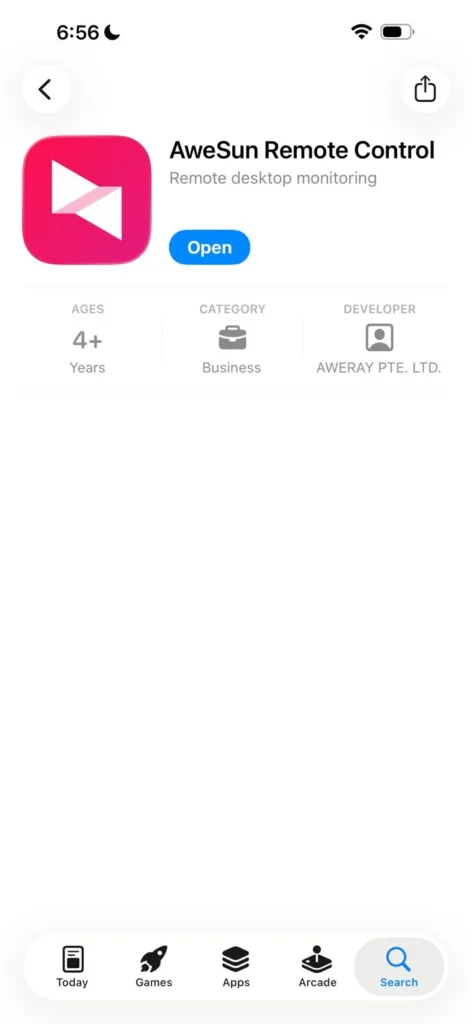
Step 1: Download and install AweSun Remote Control from the App Store on both iPhones.
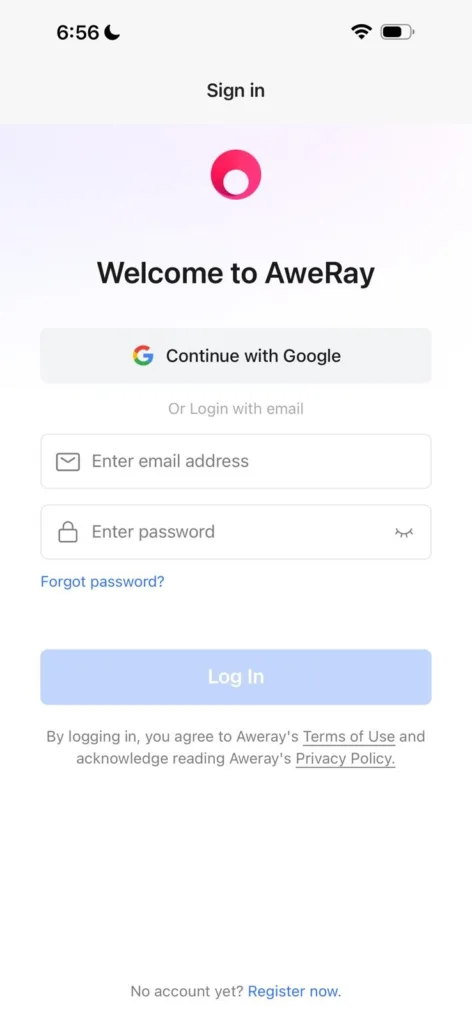
Step 2: Sign in or create an account on both devices.
Step 3: On the target iPhone, open the app and copy the Device ID and passcode.
Step 4: On the other iPhone, enter the Device ID and passcode to connect.
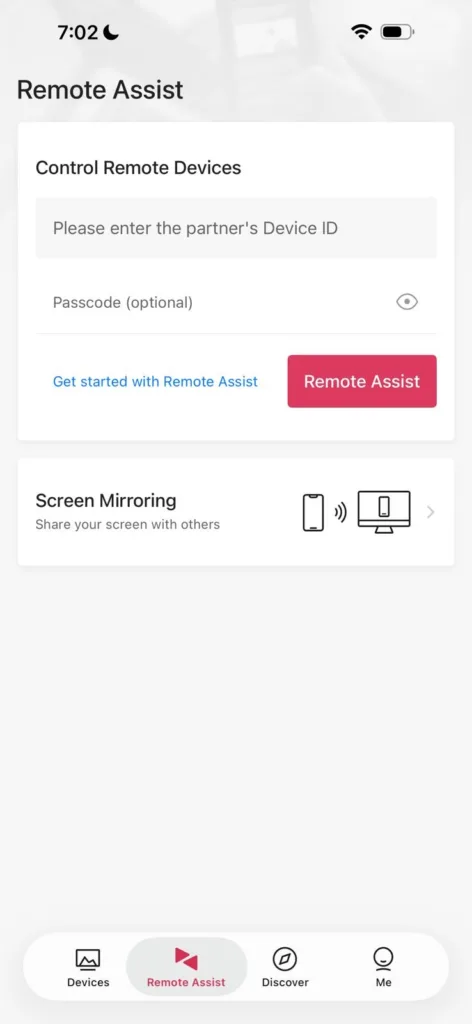
Step 5: Once connected, view the screen and guide actions in real time.
That’s it. No complicated setup, no accounts needed if you want to keep it quick.
Scenario 2: iPad to iPhone (Bigger Screen, Better Control)
This one is underrated. Using an iPad to access an iPhone gives you a much better view. When reviewing apps or helping someone, it is easier than staring at a small screen.
Why this setup works better
A larger display changes how you interact with the session. You can see details clearly and guide faster.
Here’s where it really helps:
- Reading small text or settings menus
- Walking someone through multi-step tasks
- Managing app settings more comfortably
Real example
Once, I helped someone set up email on their phone. On a normal iPhone screen, it’s slow and messy. On an iPad, I could clearly see every step and guide them quickly. It’s a small shift, but it makes the process feel smoother.
Scenario 3: Windows PC to iPhone (Best for Support & Work)
If you want serious control and visibility, using a Windows PC is the strongest setup.
This is especially useful if you’re:
- Providing tech support
- Managing multiple devices
- Recording sessions or taking notes
You get a stable connection plus a full desktop view. It feels closer to a real remote control, even though it’s still technically a guided interaction.
Benefits you’ll notice immediately
- Larger screen = better clarity
- Faster troubleshooting
- Easier multitasking while assisting
When I use this setup
Whenever I need to explain something step by step or troubleshoot deeper issues, I switch to the PC. It’s just easier to think and act on a bigger screen.
What Makes AweSun Faster Than Other Methods
Speed is the biggest difference. Many apps claim remote access, but they lag or disconnect at the worst time.
What matters most:
- Connection time – anything above 2–3 seconds feels slow
- Latency – delays make guidance frustrating
- Frame rate – low FPS makes screens hard to read
AweSun performs well because it keeps all three balanced. You connect quickly, see updates instantly, and don’t feel delayed while helping someone.
What You Can and Can’t Do (Important Reality Check)
Let’s keep this clear, this isn’t full control like a PC.
What you CAN do
- View another iPhone screen in real time
- Guide users step-by-step
- Help with settings, apps, and troubleshooting
- Assist remotely during urgent situations
What you CAN’T do
- Directly tap or control another iPhone fully
- Access private data without permission
- Run background control without user interaction
That’s just how Apple works. It is also better for privacy.
Common Mistakes People Make
Users struggle not because of the tool but with how to use it:
Here are a few things to avoid:
- Trying random apps with poor performance
- Using unstable internet connections
- Expecting full remote control like Android or PC
- Not guiding clearly during screen sharing
If you keep expectations realistic, the experience becomes much smoother.
Best Use Cases in Real Life
Remote iPhone access isn’t just a tech feature; it solves everyday problems.
It helps in:
- Supporting parents to fix phone issues
- Assisting friends with app setup
- Remote troubleshooting for work
- Quick SOS support when someone is stuck
FAQs
Can you fully control an iPhone remotely from another iPhone?
No. You can view the screen and guide actions, but Apple’s security system restricts direct control.
What is the fastest way to remotely access an iPhone?
Using a low-latency app like AweSun Remote Control is currently the fastest way to share a screen in real time.
Does AweSun work on Mac?
AweSun provides seamless cross-platform functionality, supporting Windows, Android, and iOS devices.
Is remote access safe for iPhones?
Yes, as long as you use trusted apps and only connect with people you trust. Sessions require permission.
Final Thoughts
Establishing a remote connection to an iPhone has evolved significantly. You may not get full control, but for real-life use, helping someone, fixing a problem, or guiding a task, it works surprisingly well. The key is using a tool that doesn’t slow you down. Speed and stability matter more than extra features. That’s where AweSun Remote Control stands out. It connects quickly, stays smooth, and doesn’t complicate things. If you often help others with their phones or need remote visibility, it’s worth trying. Once you use it in a real situation, you’ll see how much time it saves and why going back to manual explanations feels outdated.