
Edit AI Images Free: A 2026 Guide
AI-generated images are incredible, but they aren’t always perfect. You’ve probably spent time crafting the perfect prompt only to get an image with six-fingered hands, distorted faces, or strange background objects. This is a common hurdle, but it’s not a dead end. The real magic happens when you take that nearly perfect image and refine it.
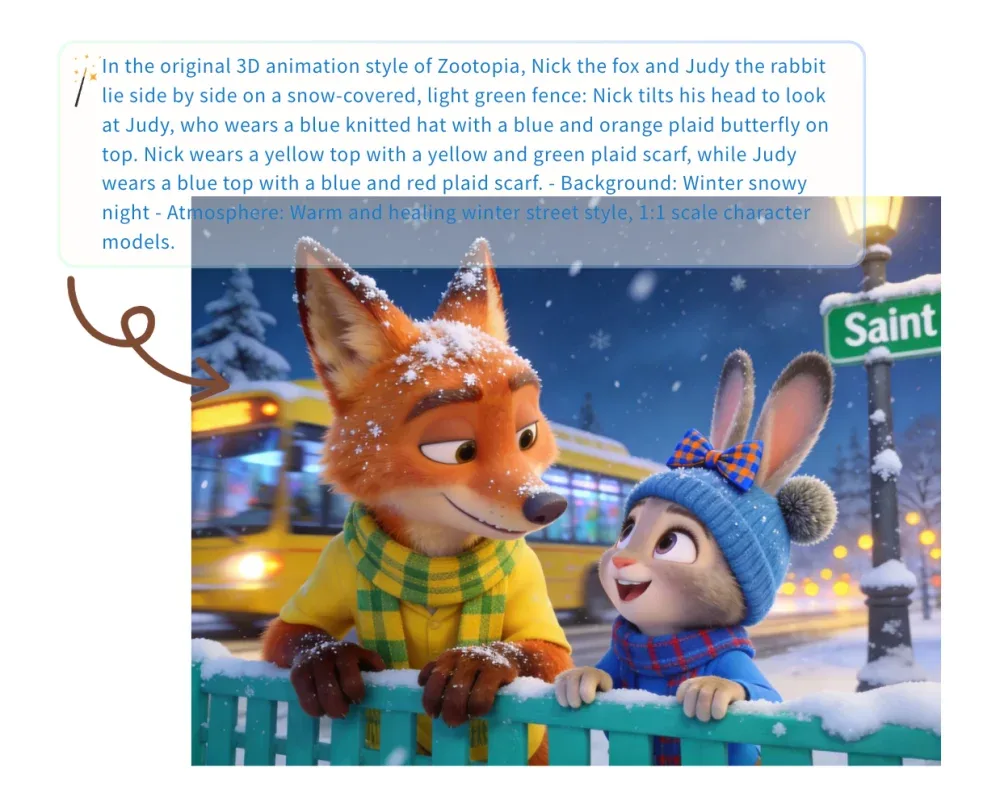
Learning how to edit AI-generated art is the key to unlocking its full potential. It bridges the gap between the machine’s interpretation and your creative vision. This guide provides a complete, step-by-step workflow to help you fix common AI flaws and enhance your images, turning them from interesting concepts into polished, professional-quality visuals.
Step 1: Generate Your Base Image with Precision
Great editing starts with a great foundation. Before you even think about corrections, focus on getting the best possible output from the generator. This means writing detailed, specific prompts. Instead of “a dog in a field,” try “a golden retriever sitting in a field of tall grass during sunset, soft golden light, detailed fur.” The more information you provide, the less work you’ll have to do later.
Experiment with different phrases and negative prompts to steer the AI away from known issues. Start by using a Free AI Image Generator Online to create your initial artwork. Treat this stage as an iterative process. Generate several variations and choose the one that is closest to your vision, even if it has a few imperfections. A strong composition and accurate subject matter are harder to fix than small artifacts.
Step 2: Identify Key Areas for Improvement
Once you have your best image, it’s time to put on your critic’s hat. Open the image and zoom in to inspect every detail. Don’t just glance at it; look for the subtle errors that AI models often make. Many creators get so excited by the overall result that they miss the small details that can make the image look uncanny or unprofessional.
Create a mental checklist of what needs to be fixed. Common problems include misshapen hands and feet, incorrect number of limbs or fingers, distorted facial features, nonsensical text on signs or objects, and textures that look unnatural or “melded” together. Look at the lighting, too. Does the light source seem consistent across the entire image? Note every flaw you want to address before moving on to the editing phase.
Step 3: Upload to a Dedicated AI Photo Editor
While traditional photo editors have their place, they often struggle with the unique problems found in AI art. Their tools, like clone stamps and healing brushes, were designed for real photographs. For AI-specific fixes, you need a tool that understands the underlying structure of a generated image. This is where modern editing applications shine.
Find and open a tool built for this purpose. Once you have your image, the next move is to upload it to a powerful Free AI Photo Editor. These platforms are equipped with algorithms trained to recognize and correct AI artifacts, making the entire process smoother and more effective. Uploading your file is typically a simple drag-and-drop or a file selection process.
Step 4: Use AI Inpainting to Fix Flaws
Inpainting, sometimes called object removal or magic fill, is your most powerful tool for correcting errors. This feature allows you to select a problematic area and instruct the AI to regenerate just that portion of the image. It’s perfect for fixing those notorious AI hands or removing a weird object that doesn’t belong.
To use it, select the inpainting or magic erase tool. Carefully brush over the element you want to remove, like an extra finger or a distracting blob in the background. After highlighting the area, you’ll often get a text box. In this box, type a simple prompt describing what should replace it. For an extra finger, you might prompt for “realistic skin texture.” For a background object, you could use “grassy field” or “blue sky.” The AI will then fill the selected area based on your new instruction, seamlessly blending it with the surroundings.
Step 5: Refine and Enhance Details
After you’ve corrected the major flaws, you can focus on improving the overall quality of the image. Many AI generators produce images at a lower resolution to save time and resources. This can result in a lack of sharpness and clarity. Upscaling is the process of increasing the image’s resolution without losing detail.
Look for an “Upscale” or “Enhance” feature within the editor. These tools use AI to intelligently add pixels, sharpening lines and refining textures in a way that traditional resizing cannot. This is especially important if you plan to print the image or use it in a large format. You can also find features for face enhancement, which specifically target and correct distorted eyes, noses, and mouths to make them appear more natural.
Step 6: Adjust Lighting and Color Composition
Consistent lighting and balanced colors are crucial for a believable image. AI models sometimes struggle to maintain a single, coherent light source, leading to shadows that fall in the wrong direction or highlights that appear where they shouldn’t. A good AI editor can help you unify the image’s atmosphere.
Use the editor’s color and light adjustment tools. You can often find AI-powered features that analyze the image and suggest optimal settings. Look for sliders to control brightness, contrast, saturation, and temperature. You can make subtle changes to make a sunlit scene feel warmer or a nighttime shot feel cooler. The goal is to ensure the entire image feels like it exists in the same environment, creating a more immersive and professional look.
Step 7: Final Review and Export
The last step is to perform a final quality check. Zoom out to view the entire composition and make sure your edits look natural. Then, zoom back in to check that the corrected areas are blended perfectly. It can be helpful to toggle between the original image and your edited version to appreciate the changes and spot any last-minute issues.
Once you are completely satisfied with the result, it’s time to save your work. Choose the appropriate file format for your needs. JPG is great for web use and smaller file sizes, while PNG is better for images that require transparency or the highest possible quality. Export your finished piece, and you’re ready to share your flawless AI creation.
Tips & Best Practices
To get the most out of the editing process, keep these professional tips in mind:
* Iterate in Small Steps: Avoid trying to fix everything in one go. Address one flaw, review the result, and then move to the next. This non-destructive approach gives you more control and makes it easier to undo a change if you don’t like it.
* Use Specific Prompts for Inpainting: When using inpainting tools, be as descriptive as possible. Instead of just “fix this,” tell the AI exactly what you want to see. “Smooth red silk fabric” will yield a much better result than a vague command.
* Always Keep Your Original File: Never work directly on your only copy of the generated image. Save a duplicate before you start editing. This ensures you can always go back to the original if you make a mistake or want to try a different editing approach.
* Combine AI and Manual Tools: Don’t be afraid to use different applications. You might use an AI editor for major fixes like inpainting and upscaling, then use a simpler, manual editor for final cropping or a slight color tweak.
* Let It Rest: After finishing your edits, step away from the image for a few hours. When you come back to it with fresh eyes, you may notice small details or areas for improvement that you missed before.
Common Mistakes to Avoid
Many newcomers make similar mistakes when editing AI images. Here are a few to watch out for:
* Over-Editing the Image: It’s easy to get carried away and apply too many enhancements. This can make the image look artificial and strip away its original character. Aim for subtle, natural-looking corrections.
* Ignoring the Overall Composition: Don’t get so focused on fixing a tiny flaw in the corner that you miss a larger compositional issue. Make sure the main subject is well-placed and the image is balanced.
* Using the Wrong Tool for the Job: Trying to use a standard clone stamp from an old photo editor to fix a complex AI texture often creates a smudged, obvious patch. Use AI-aware tools that are designed to handle these specific challenges.
* Forgetting to Upscale Early: If you know you need a high-resolution image, use an upscaling tool before you do detailed inpainting. Editing a low-resolution image and then enlarging it can magnify any imperfections in your edits.
Conclusion
AI image generation is a fantastic starting point, but editing is where your true creativity and control come to life. By following a structured workflow, you can easily correct the common errors of AI models and enhance your images to a professional standard. The process of generating, identifying flaws, and using a dedicated editor for targeted fixes is the new reality for digital artists and creators.
With powerful and accessible tools at your disposal, you no longer have to settle for “almost perfect.” You have the ability to guide your creations to completion. Now that you have the knowledge and the steps, it’s time to start refining your AI art and turning your imaginative prompts into flawless, finished masterpieces.