
7 classroom noise monitor apps that help students self-regulate volume
Managing classroom volume has long depended on one tool: the teacher’s voice. A growing set of free web apps is moving some of that work to the screen. Instead of waiting for a reminder, students get a live picture of how loud the room is and adjust on their own.
These tools go by a few names, including noise monitor, volume meter, and sound level display, but they share a basic idea. A device microphone reads the volume in the room, and the screen translates it into something students can read at a glance, usually color, motion, or a character that reacts. Put it on a projector and the whole class can see the same signal at the same time.
The appeal is less about silence and more about self-regulation. When students can see their volume, the teacher stops being the only monitor in the room. That shift matters for younger grades learning to manage themselves, for group work where some noise is expected, and for testing where it is not. The following seven apps take different approaches to the same goal, and they range from playful animations to plain meters built for speed.
Classroom Noise Monitor
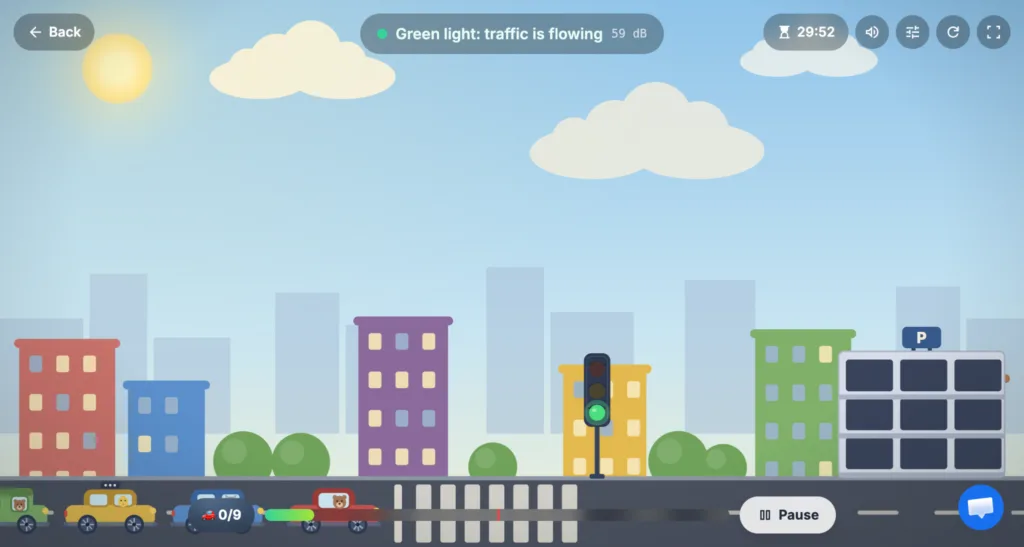
Classroom Noise Monitor, found at classroomnoisemonitor.com, is one of the more complete options in this category. It runs in a browser with no install or account, and the microphone reads the room across three zones: quiet, a normal working buzz, and too loud.
Rather than a flat bar, the screen shows a scene that builds while the class stays calm, with themes that include growing trees, hatching dinosaurs, parking cars, and launching rockets. A classic traffic light theme is available for teachers who want something plainer.
The feature that sets it apart is a sensitivity slider that can be changed mid lesson and is remembered for next time, so the threshold can be tightened for silent reading and loosened for group work without resetting it every session.
On privacy, the app states that it measures volume only and never records, stores, or transmits audio, and students never need logins.
A free plan covers 30 minute sessions and three themes, while a one time Lifetime Pro payment of 20 dollars unlocks every theme, removes the session limit, and adds priority support, with no subscription.
Mio’s Monster Meter
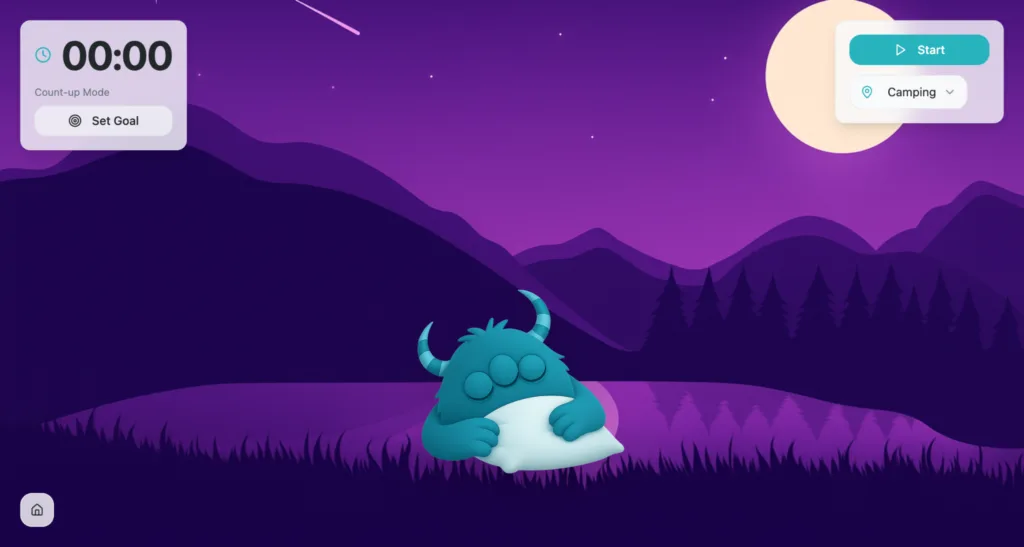
Mio’s Monster Meter, part of the ClassroomZen suite from SMART Technologies, leans into character-driven feedback.
A friendly monster named Mio reacts to the volume in the room, and the gamified twist is simple: the longer the class stays quiet, the longer Mio gets to rest. Students work to keep the character calm rather than to avoid a warning.
The tool is free and offers multiple environments to choose from, and it is framed around social-emotional skills such as self-management and decision-making rather than noise alone.
That makes it a fit for early grades, where a recognizable character tends to hold attention longer than a meter.
Calm Counter
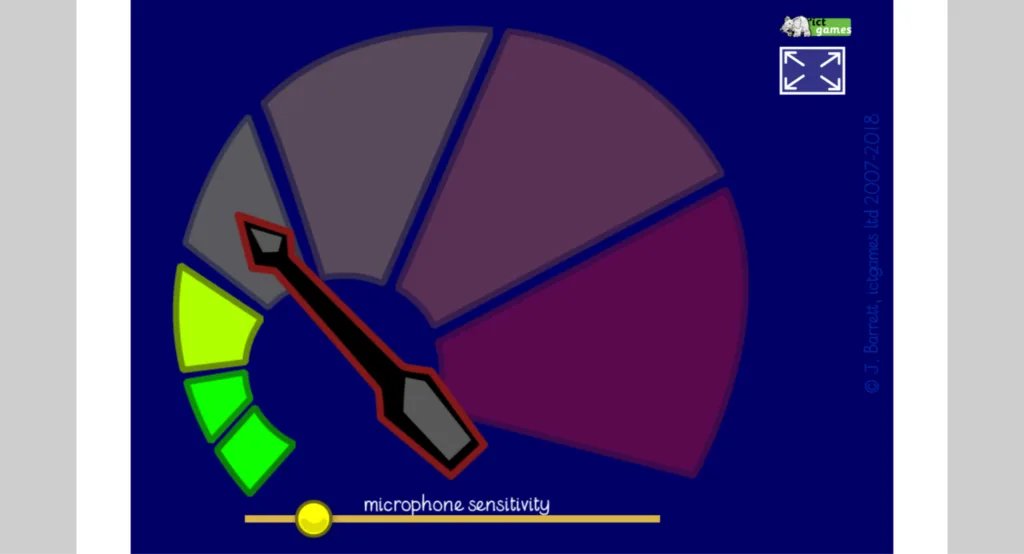
Calm Counter, hosted by ICT Games, is the no-frills choice. It shows an arrow and gauge that move from green to yellow to red as the room gets louder, and the only setting a teacher adjusts is microphone sensitivity.
The browser asks permission to use the mic, and the site notes that no sound data leaves the machine.
What it lacks in animation it makes up for in speed and clarity. There is nothing to configure beyond sensitivity, which suits teachers who want to set a level, turn a noise challenge into a quick game, and move on. Its simplicity is the point.
Bouncy Balls
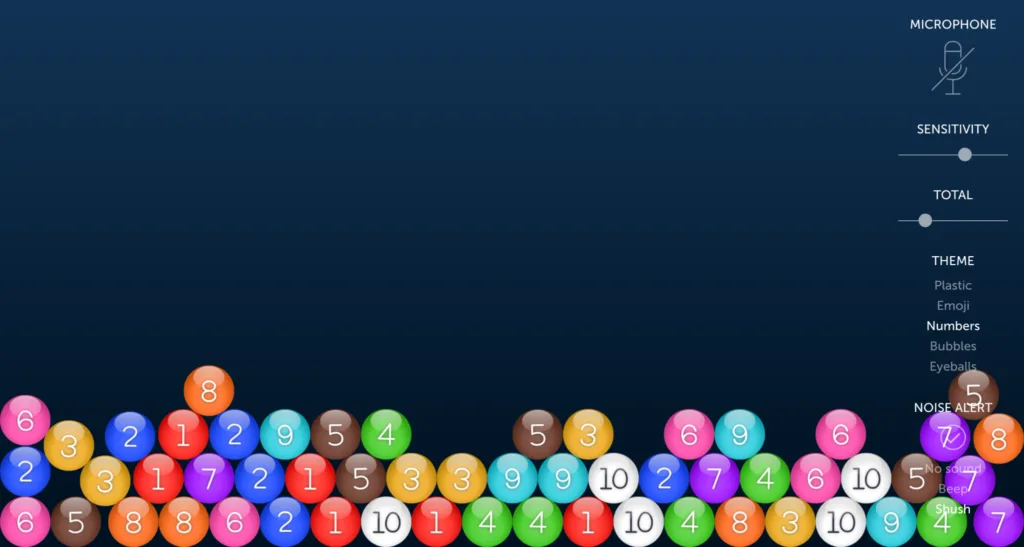
Bouncy Balls is among the most widely used free monitors, in part because it takes seconds to start and needs no registration or download.
As the room gets louder, balls shoot up from the bottom of the screen and bounce more wildly, and the visuals can be swapped for bubbles, eyeballs, or emoji. An optional audible alarm chimes when noise crosses the set threshold.
The playful display is its strength and its weakness. Younger classes respond to it, but some students will get loud on purpose to make the balls fly, so it works best when the goal is gentle awareness rather than strict quiet.
ClassDojo Noise Meter
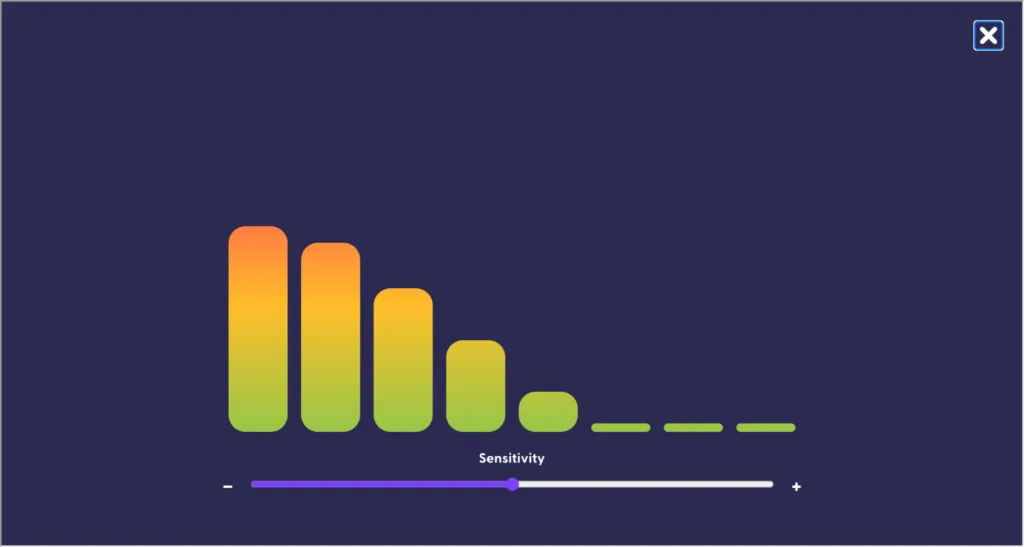
For schools already using ClassDojo for classroom management and behavior points, the built in noise meter is a low-friction addition because it lives inside a platform teachers are already in. The display uses an adjustable sensitivity bar and columns that rise and fall with the volume in the room, and it is free to use.
The meter itself is straightforward and gives students nothing to chase beyond the moving columns, so the novelty fades faster than the themed tools.
It does require a ClassDojo account and an internet connection, which makes it most practical for classrooms already invested in that ecosystem.
Too Noisy
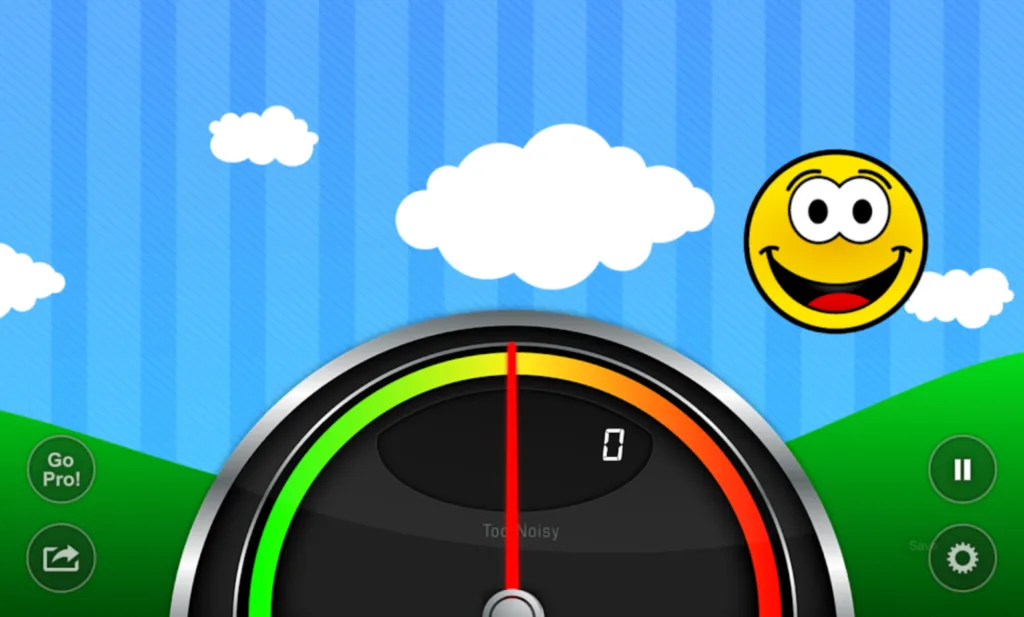
Too Noisy presents volume as a dial with a moving arrow, similar to a car speedometer, that climbs from green and yellow into orange and red.
The paid Pro version adds a background image that visibly cracks as noise rises, which gives students a clear consequence to avoid. It works across browsers, iPhone, iPad, and Android, so it is not tied to a single device.
A free version is available to test the concept, and the Pro app costs a few dollars for the extra graphics and features. The game-like pressure works well with classes that respond to a challenge, though the most engaging version sits behind the paid upgrade.
Teacherstack
Teacherstack bundles a noise monitor into a broader free toolkit used by tens of thousands of teachers. Its volume monitor offers real-time readings along with activity presets and noise history, so a teacher can set an expectation for a given task and look back at how the class tracked against it over time.
That history is the differentiator for self-regulation. Rather than only signaling the current moment, it gives a class data they can reflect on and try to improve, which fits older students who respond to measurable goals.
The monitor sits alongside timers, rotations, and other display tools, so it suits teachers who want one workspace rather than a single-purpose page.
How to choose
The right monitor depends less on features and more on the room. Early grades tend to respond to character-driven tools like Mio’s Monster Meter or the themed scenes in Classroom Noise Monitor, where students work toward a visible payoff.
Older students often do better with measurable feedback, which favors Teacherstack’s noise history or Too Noisy’s escalating dial.
When speed matters, Calm Counter and Bouncy Balls start in seconds, and ClassDojo makes sense for classrooms already on that platform.
A few practical points apply across all of them. Most read the microphone locally and do not record audio, but it is worth confirming the privacy language before classroom use, especially in districts with strict data rules.
Sensitivity should be tested before students arrive, since a level set for silent reading is usually too strict for group work. And the display only works as self-regulation if students can actually see it, which means putting it on the projector or main screen rather than a single laptop.
Used that way, a noise monitor shifts the job of managing volume from the teacher to the class, which is the entire reason these tools have moved from novelty to standard classroom kit.
Pricing and features were accurate at the time of writing and may change. Free versions are a low-risk way to test which approach fits a given classroom.